Posts

Showing posts with the label PowerShell

Copy SharePoint Online site pages from one site to another - Easy PowerShell Script

Image
There are several PowerShell scripts and multiple ways OOTB and using third party to copy SharePoint Online Pages from one site to another. However, sometimes it might become a hectic job when you are limited to use OOTB available features only.  I had to copy SharePoint Online site pages to another subsite, and here is the final script that I came up with. You need to download and install  SharePoint Online Management Shell from Microsoft web site and then run it as administrator. After that, copy below script (of course by updating the Source and Destination sites URL) in a notepad file, save it as .ps1 file and then just run this script.    $SourceSiteURL = "https://company.sharepoint.com/sites/ParentSite/ChildSite1" $DestinationSiteURL = "https://company.sharepoint.com/sites/ParentSite/ChildSite2" Connect-PnPOnline $SourceSiteURL -UseWebLogin $Files = Find-PnPFile -List "SitePages" -Match * foreach ( $file in $Files ) { Connect-PnPOnline ...

How to enable Content Editor and Script Editor web parts in SharePoint Online?

Image
Although Microsoft recommends to adopt the new technology and customize the SharePoint Online portals through SharePoint Framework, we often come to face the customer's requirement where the customizations go far beyond the out of the box layout and demands something which is not available in Modern pages and layouts. In those scenarios, we have to go back to the classic approach and use the client side scripts and web parts to achieve the functionality. Content Editor and Script Editor web parts were such a blessing during the SharePoint on-premises days and we would love to have them back in SharePoint Online which is currently not available by default. To enable these two champions, there are two ways. Method 1: You can also directly access the Tenant Settings page directly from the browser by accessing the below URL: https : //sharepointerguy-admin.sharepoint.com/_layouts/15/online/TenantSettings.aspx In this page, if you will navigate to the Custom Script section, then you wil...

PowerShell Script : Mount Multiple Content Databases at once with SharePoint

Image
Below is the code that you can use to mount multiple content databases with SharePoint (2010 or 2013 or 2016). Put all of the content databases names in DB.txt file and run the script. 1. Create text file with name “DB.txt” in the same directory where script file is present. Write database names in “DB” file.  Make it sure each name should be in new line and write End Point at the end as shown below. 2. Open SharePoint 2013 Management Shell 3. Change directory path to path where script file is saved. Then type ./MountSPContentDB.ps1 and press enter key. (Copy the script in a file and name it MountSPContentDB.ps1)  Provide web application url and press enter key. Provide SqlServer name and instance.  4. Result  You can track the complete log file (named MountSPContentDB -current date and time) which you can find in the same directory where your script file is located.  Script: $currentTime = G...

Find attached Workflows to a list in SharePoint 2013 using PowerShell

Image
This Script will iterate through all the provided Site Collections and export the attached Workflows with a list in a CSV file. It will also generate a log file that contains the script execution logs. It will export the following items. 1. Site URL 2. Web URL 3. List Name 4. Attached Workflows Count 1.Text file containing database names Create text file with name “DB.txt” in the same directory where script file is present. Write database names in “DB” file.  Make it sure each name should be in new line and write End Point at the end as shown below. 2.Open SharePoint 2013 Management Shell 3.Change directory path Then type ./ WorkflowFinder.ps1 and press enter key. 3. Results 2.        Result will be saved in “WorkflowFinder.csv” file which you can find in the same directory where your script file is located. You can also track the complete log file (named WorkflowFinder -current da...

Get All Web Templates Using PowerShell SharePoint 2013

Image
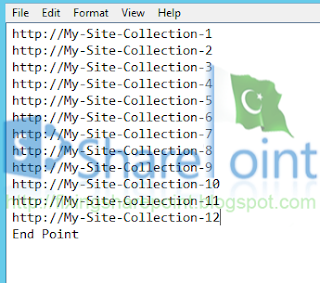
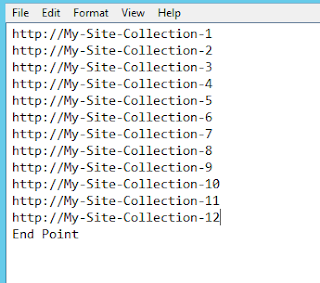
This script will traverse all the site collections and extract its template name. 1.Site Collections File Create text file with name “SiteCollections.txt” in the same directory where script file is present. Write site collections urls in “SiteCollections” file.  Make it sure each url should be in new line and write “End Point” at the end as shown below. 2. Save Code and Run Save below code and Open SharePoint Management Shell. Change the directory to where the code and SiteCollections.txt file is saved and run the code script file. The output would be like below. PS Script: $currentTime = Get-Date -Format o | foreach { $_ -replace ":" , "." } New-Item $PSScriptRoot \GetAllWebTemplates- $currentTime .txt -type file $SiteCollectionArray = Get-Content -Path $PSScriptRoot \SiteCollections.txt Start-Transcript -Path "$PSScriptRoot\GetAllWebTemplates-$currentTime.txt" $UtilStartTime = "Utility Sta...

Count All List/Libraries Items Using PowerShell SharePoint 2013

Image
This PowerShell Script will output all items count inside the provided Site Collections list. It will traverse through Site Collections then all sub sites then all list/libraries and output result in a csv file. 1.Site Collections File Create text file with name “SiteCollections.txt” in the same directory where script file is present. Write site collections urls in “SiteCollections” file.  Make it sure each url should be in new line and write “End Point” at the end as shown below. 2.Open SharePoint 2013 Management Shell 3.Change directory path where script file is saved Then type ./ItemsCounter.ps1 and press enter key. It will count all the items of all lists and libraries in site collections which you will provide in “SiteCollection.txt” in first step. 4.Result  Result will be saved in “ItemsCounter.csv” file which you can find in the same directory where your script file is located.  You can also track the comple...

Change Content of Content Editor WebPart Using PowerShell SharePoint 2013

Image
This PowerShell script will change the content of a content editor webpart based on its title. You can change the title of target webpart as well as in PowerShell script too. 1.   Site Collections File Create text file with name “SiteCollections.txt” in the same directory where script file is present. Write site collections urls in “SiteCollections” file. Make it sure each url should be in new line and write “End Point” at the end as shown below. End Point is a reserve word for this script.   2.   Open SharePoint 2013 Management Shell 3.     Change directory path where script file is saved. 4.     Type script name Copy and Save this script with name like ChangeWebPartContent.ps1  and ps1 extention. Type ” ./   ChangeWebPartContent .ps1 –path “directory path\SiteCollections.txt” –overwrite o “ and press enter key. Or Type ” ./   Ch...

Convert Classic To Claims Mode Authentication SharePoint 2013

Your SharePoint 2013 users may get Access Denied while accessing a web application which is just got migrated from SharePoint 2010 environment. Mostly this happens due to change in authentication modes as classic mode authentication has been deprecated in SharePoint 2013. Although you can create a classic mode web application using SharePoint Management Shell. This script will work on SharePoint 2013 environment where you have a classic mode web application migrated from SharePoint 2010 or MOSS 2007. Note: If you have more than one Content Databases attached with single web application and you are migrating databases one by one, you have to run this script each time you finish your database migration on SharePoint 2013 environment. This is what i have learned from my recent migration work. More at  https://technet.microsoft.com/en-us/library/gg251985.aspx Convert-SPWebApplication -Identity "http://webapplicationurl" -From Legacy -To Claims -RetainPermissi...

Find All Farm Features With Solution Names Using PowerShell SharePoint 2013

Image
This PowerShell script traverse all the custom solutions deployed in Central Admin and the features that get deployed under that solutions.   It exports following items. 1. Solution ID 2. Solution Name 3. Feature ID 4. Feature Name 5. Feature Scope  You can change the paths accordingly.   Start-Transcript "C:\FeatureLogs.txt" $farm = [Microsoft.SharePoint.Administration.SPFarm] :: Local foreach ( $solution in $farm .Solutions) { $solId = ( Get-SPSolution $solution .DisplayName).Id foreach ( $featcher in ( Get-SPFeature | where { $_ .solutionId -eq $solId })) { $SolutionID = $solution .DisplayName $output = $solution .id.GUID + "`t" + $solution .DisplayName + "`t" + $featcher .id.GUID + "`t" + $featcher .DisplayName + "`t" + $featcher .Scope Write-Host $output } ...