Posts

Workflow Manager Architecture SharePoint 2013
Image
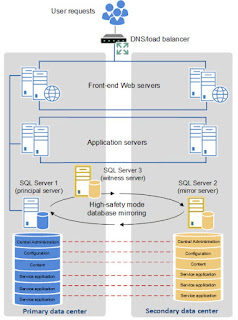
Hi There, There are a lot of material to guide you how to install Workflow Manager with SharePoint 2013. I'll try to cover the points mentioned below in few words only, 1. Where to install Workflow Manager in SharePoint 2013 farm? 2. Do i need to install Workflow Manager on all SharePoint servers in the farm? 3. Do i need to install Workflow Manager on WFE's too in my farm? 4. Minimum which version of Workflow Manager is stable till today? (24-Jan-2016) 5. What is the sequence of installing Workflow Manager in SharePoint farm? My SharePoint architecture is like below. 2 WFE, 2 APP and 2 DB servers with failover. 1. Where to install Workflow Manager in SharePoint 2013 farm? Well its totally vary according to your architecture and need. In my case first of all i installed it on my APP1 server and tested the workflows which went fine. However when i tested the same from WFE's it threw me error of file not found. Simply it was pointing...

SharePoint: The EXECUTE permission was denied on the object 'xp_sqlagent_notify

Image
Hi There, I was working with SharePoint SSRS and the reports were working fine. However when i click "View Report History" it gave me the below error. Microsoft.ReportingServices.Diagnostics.Utilities.ReportServerStorageException: An error occurred within the report server database.  This may be due to a connection failure, timeout or low disk condition within the database. ---> System.Data.SqlClient.SqlException: The EXECUTE permission was denied on the object 'xp_sqlagent_notify', database 'mssqlsystemresource', schema 'sys'.     I found an answer here  but i was looking for some systematic way than running SQL Server queries. So i found a solution here which worked for me. So the solution is: 1. Open SharePoint Central Administration >  Application Management >  Manage Service Applications 2. Click on your SQL Server Reporting Services Service Application 3. Click on “Provision Subscriptions and Alerts” link 4...

FIM Groups Missing SharePoint UPS (User Profile Service)

Image
Hi There, Note: This article applies on SharePoint 2010, SharePoint 2013. Its a brand new server with Windows Server 2012 R2 and SharePoint 2013 with October 2015 CU installed on it. I created the User Profile Service Application and as usual (from past experiences) it didn't start on first attempt and stuck on starting or sometimes User Profile Service stopped after being in Starting state for few minuets. Strange....! But that's another side of UPS issue. I read many articles including the best ones  Harber1  and Harber2 . These articles are in very much detail and helps you to fix the UPS Stuck problem. However my problem was, the below FIM Security groups were not present in Local Users and Group s for User Profile Service Application . FIMSyncBrowse FIMSyncJoiners FIMSyncOperators FIMSyncPasswordSet In most of the posts on internet regarding this issue (like this ) its stated that to check the FIM groups and many people also commented the s...

SharePoint Integration Mode SSRS : Permissions granted to user are insufficient for performing this operation

Image
Hi There, Its December 30 2015 12:30 PM and my team has to show demo to client at 02:00 PM. Received a call from my team that editing a data source from a SharePoint list is throwing an error. Wow, that's critical and i would love to fix this. I quickly googled and tried every solution i found on first page but didn't work. "Google says, the best place to hide a dead body is on google's second search page." So i navigated to move ahead with search on second page and found  this  awesome post that fixed my issue. I took the below steps which didn't helped me. 1. My permissions was OK on reporting DB,s 2. The account i am using for editing the data source was the system account 3. Restarted the SQL Server Reporting Services in SharePoint CA BTW, i am running SharePoint 2013 in a three tier farm architecture with SSRS SharePoint Integration Mode. Below are the error details... The permissions granted to user ‘ domain\username ’ are...

Install Nintex Workflow 2010 Step by Step [With Screenshots]

Image
Hi There, Going to install Nintex Workflow 2010 for the first time? Don't worry, its piece of cake. Below are the steps with screenshots to install Install Nintex Workflow 2010 step by step on Windows Server 2008 R2 with SharePoint server 2010. 1. Download the setup media from Nintex officials . In my case, its a trail version. 2. Open NintexWorkflow2010.exe 3. Accept license agreement 4. Uncheck "Install Nintex Live" if you are not using the Nintex cloud services 5. Select the "Yes" radio button. It will automatically install the Nintex WSPs in CA. 6. Installing.... 6. Installation completed. Verify the WSP's deployed successfully in CA. 7. Done...!

SharePoint 2013 on Windows Server 2012 R2 : The tool was unable to install Application Server Role, Web Server (IIS) Role

Image
Hi There, I spent hours to troubleshoot this issue while installing SharePoint 2013 Prerequisites on Windows Server 2012 R2 but no gain. I have installed IIS and its features manually but still did not work. The tool was unable to install Application Server Role, Web Server (IIS) Role The Logs Shows Below 1. Error: Startup task doesn’t exist. This is not a continuation after a restart 2015-02-10 15:58:56 – C:\ProgramData\Microsoft\Windows\Start Menu\Programs\Startup\SharePointServerPreparationToolStartup_0FF1CE14-0000-0000-0000-000000000000.cmd 2015-02-10 15:58:56 – Error: Startup task doesn’t exist. This is not a continuation after a restart. 2015-02-10 15:58:56 – Locating the following command line arguments file: 2015-02-10 15:58:56 – E:\PrerequisiteInstaller.Arguments.txt 2. Error: [In HRESULT format] (-2147024894) 2015-10-02 15:59:02 – Created thread for installer 2015-10-02 15:59:02 – “C:\Windows\system32\ServerManagerCmd.exe” -inputpath...

Microsoft.Workflow.Client.ScopeNotFoundException

Image
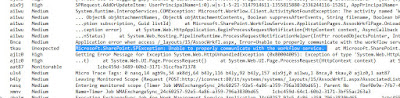
Hi There, Microsoft don't want our lives easy with simple configurations. :P I found error "Microsoft.SharePoint.SPException: Unable to properly communicate with the workflow service." in my ULS logs and tried to fix it. However, i noticed few Exceptions on top of this unexpected error which was the main cause of this error. Main Unexpected Error in ULS: I looked a bit top of it and found the Exception  "Microsoft.Workflow.Client.ScopeNotFoundException: Scope '/SharePoint/default/afb6b02c-a3e5-4dff-8e13-4930f4f3c76b' was not found.  HTTP headers received from the server - ActivityId: 7d0657c4-8ce0-4aaa-94b6-01a49312d14f. NodeId: PROD-SPAPP01. Scope: /SharePoint/default/afb6b02c-a3e5-4dff-8e13-4930f4f3c76b/711fc309-214c-4ae3-a36b-c055470a499e. Client ActivityId : dcbb459d-140f-60b2-3171-32aaaaec3a44. ---> System.Net.WebException: The remote server returned an error: (404) Not Found.     at Microsoft.Workflow.Common.AsyncResult.End...